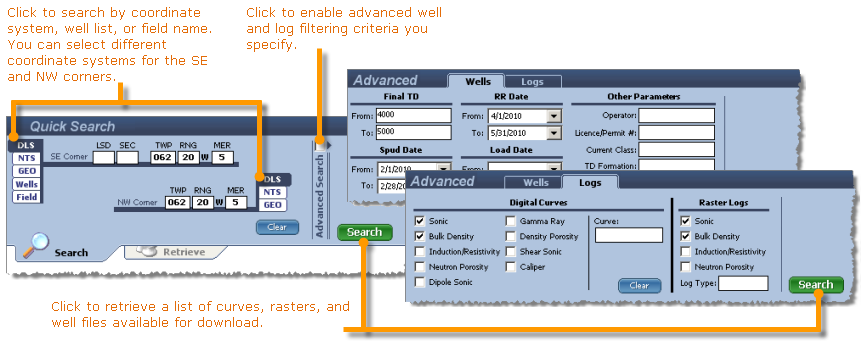
You can either download a full list of items or a list of wells where the list of items is only downloaded when you expand a well node. Here are the details:
Quick Search - download a list of all the wells that fall within the area of interest you define. The actual list of items that you can download for each well are not downloaded along with the catalog until you expand the well node under which the items appear.
Full Search - download a list of items available for each well along with the list of wells. Full Search is recommended for up to 10,000 wells. Because a list of all curves is retrieved using Full Search, an Expand All button appears to the left of the Search Results grid with which you can display a list of every item that appears under every well in the Search Results grid.
For both Quick and Full searches, you can filter the wells retrieved by adding advanced filter criteria.
Advanced Search enables you to add well and log filters. Items must match all of the criteria you specify in order to be retrieved. In Boolean terms, an AND operand joins the criteria you select, not an OR operand.
You can save project settings, including search criteria and search result display criteria, that you subsequently load by selecting File ( ) > Open Project. For details, see Related Topics below.
To specify Quick or Full Searches
From the Tools ( ) menu, select either Full Search or Quick Search.
The type of search you selected (Quick or Full) appears above the search options in the top-left of the window as depicted below.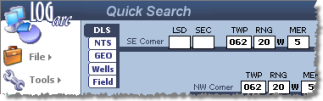
You can now type your search criteria.
Advanced searches enable you to specify well and log parameters with which to search. Advanced search is available for both Quick and Full searches and in all domains (coordinates, GEO, Wells, and Fields). For wells, advanced searches restrict the wells returned by the search, they don't restrict the actual data returned for wells.
To specify Advanced search
1. In the top search pane, click the Advanced Search checkbox to the right of the domain controls.
2. A Wells and a Logs tab appear where you specify additional criteria with which to search.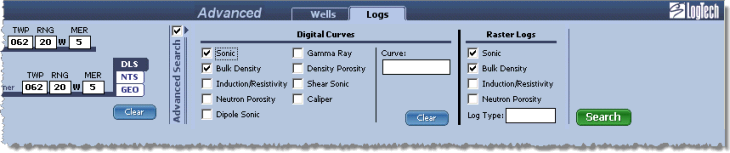
| Searching by UWIs and Well Lists | Searching by Fields |
| Saving and Loading Projects | Saving and Loading Retrieve Profiles |